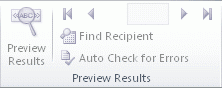
step to preview results in mail merge in word
-
Click Preview Results.
-
Page through each merged document by using the Next Record and Previous Record buttons in the Preview Results group.
-
Preview a specific document by clicking Find Recipient.

Here’s a brief tutorial on how to start a mail merge in Microsoft Word:
Open Microsoft Word: Launch Microsoft Word and open the document in which you want to perform the mail merge.
Access the Mailings Tab: Click on the “Mailings” tab in the top menu. This tab contains all the tools and options you need for the mail merge process.

Mail Merge in Word
Start Mail Merge: Within the “Mailings” tab, locate and click the “Start Mail Merge” button. This button is your entry point into the mail merge setup.
Choose Mail Merge Type: After clicking “Start Mail Merge,” a dropdown menu will appear. Select “Step-by-Step Mail Merge Wizard” from the options. This wizard will guide you through the mail merge process step by step, making it easy to configure.

Start Mail Merge in Word
Select Document Type: The Mail Merge Wizard will now prompt you to choose the type of document you want to create. Options typically include letters, envelopes, labels, and more. Select the document type that matches your needs.

Start Mail Merge in Letters
Starting Document: Click “Next: Starting document” to proceed to the next step in the wizard. This step usually involves selecting the starting document layout and configuring any additional options specific to your chosen document type.

Start Mail Merge Starting document
Here’s a brief tutorial on how to perform a mail merge for labels in Microsoft Word:
Open Microsoft Word: Launch Microsoft Word and create a new document or open an existing one where you want to perform the mail merge for labels.
Access the Mailings Tab: Click on the “Mailings” tab located in the top menu bar. This tab contains all the tools you need for mail merging.

Mail Merge for Labels
Start Mail Merge: Within the “Mailings” tab, find and click the “Start Mail Merge” button. A dropdown menu will appear; select “Step-by-Step Mail Merge Wizard” to begin.

Start Mail Merge for Labels
Choose Labels: In the Mail Merge Wizard, select “Labels” as the type of document you want to create. Then, click “Next: Starting document” to continue.

Start Mail Merge for Labels
Label Options: The next step involves configuring your label options. Choose the way to set up your letters.

Label options to Start Mail Merge
Select Recipients: Now, click “Next: Select recipients.” This step involves choosing the data source for your labels. You can use an existing Excel spreadsheet or create a new one with recipient information like names and addresses. Follow the prompts to connect to your data source.

Mail Merge for Labels
how to perform a mail merge for envelopes in Microsoft Word:
Open Microsoft Word: Launch Microsoft Word and create a new document or open an existing one where you want to perform the mail merge for envelopes.
Access the Mailings Tab: Click on the “Mailings” tab located in the top menu bar. This tab contains all the tools you need for mail merging.

Mail Merge for envelopes
Start Mail Merge: Within the “Mailings” tab, find and click the “Start Mail Merge” button. A dropdown menu will appear; select “Envelopes” to begin the envelope mail merge.

Start Mail Merge for envelopes
Configure Envelope Options: After selecting “Envelopes,” a dialog box called “Envelope Options” will appear. Here, you can configure various envelope options, including the size and type of envelope you’re using. Make sure to select the appropriate envelope size and orientation based on your needs. Once you’ve set your options, click “OK” to confirm.

Mail Merge for envelopes options
Preview Your Envelopes: You can preview how your envelopes will appear by clicking the “Preview Results” button in the “Mailings” tab. This allows you to verify that merge fields are correctly placed and that the envelopes look as expected.
Complete the Merge: Once you’re satisfied with the preview, click the “Finish & Merge” button in the “Mailings” tab. You’ll have options to either print the envelopes immediately or create a new document with the merged envelopes. Choose the option that suits your needs.
step to preview results in mail merge in word
Click Preview Results.
Page through each merged document by using the Next Record and Previous Record buttons in the Preview Results group.
Preview a specific document by clicking Find Recipient.